
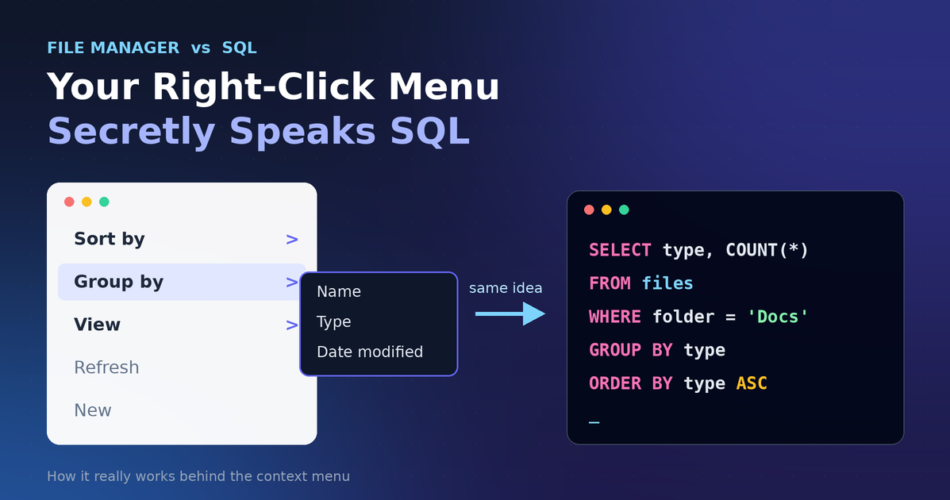
Last week I was bored, right-clicking inside a folder for no reason, and I noticed something. Sort by, Group by, View. These menu options look suspiciously like the words we use in SQL: ORDER BY, GROUP BY, SELECT.
Is that a coincidence? Or is your file manager quietly running a database behind that right-click menu?
I went down the rabbit hole so you don’t have to. In this article, I’ll explain in plain language how the file manager context menu actually works, where your file information is stored, and how close it really is to SQL. No computer science degree needed.
The Short Answer
Your file manager is not literally typing SQL queries every time you click Sort by. But the idea behind it is exactly the same. Your folder is treated like a table, every file is a row, and details like name, size and date are columns. Sorting, grouping and choosing a view are just different ways of asking a database-like system to arrange and show that table.
So yes, the similarity is real. The mechanism is just a bit different. Let’s break it down.
Your Folder Is Secretly a Table
Open any folder in “Details” view. What do you see?
| Name | Date modified | Type | Size |
|---|---|---|---|
| resume.pdf | 02-Nov-2026 | PDF File | 240 KB |
| holiday.jpg | 28-Oct-2026 | JPG File | 3.1 MB |
| notes.txt | 05-Nov-2026 | Text File | 2 KB |
That is a table. Each file is a row. Each property (name, date, type, size) is a column. This is the exact structure SQL works with, which is why the menu words feel so familiar.
These columns are called metadata, which simply means “data about the data”. The actual content of your PDF is one thing. Its name, size and last-edited date are metadata, and that’s what the file manager plays with.
Sort By = ORDER BY
This one is the easiest to match.
When you click Sort by > Size > Descending, you are basically saying:
SELECT * FROM files
ORDER BY size DESC;
Same result, biggest files first.
Sorting on more than one column. In Windows 10 and older versions of Explorer, you could switch to Details view, click one column header, then hold Shift and click a second one. That works like ORDER BY type, name: first it sorts by type, and files of the same type are then sorted by name. Heads-up: this trick is not reliable on every system. Some Windows 11 builds ignore the Shift-click. A dependable alternative is Group by > Type, then Sort by > Name. You get the same result: grouped first, then ordered inside each group.
A small difference that surprises people. SQL normally sorts text strictly letter by letter, so file10 comes before file2. Windows Explorer is smarter. It uses “natural sorting”, so file2 comes before file10, the way a human would expect. That’s one place where the file manager is friendlier than plain SQL.
What happens behind the scenes? The file manager already has the list of items in the folder. When you choose a sort option, it reads the chosen property for every item (size, date, name), compares them using a sorting algorithm, and re-arranges the list in memory. Then it redraws the screen. For a normal folder, this takes a blink of an eye.
Group By = GROUP BY (Almost, but Not Exactly)
This is where it gets interesting, and where I want to be honest, because many articles skip this part.
When you choose Group by > Type, your files get neat headings like “JPG File”, “PDF File”, “Text Document”, each with the files underneath. It feels like:
SELECT * FROM files
GROUP BY type;
A quick note for SQL readers: most databases would reject this exact query, because a plain SELECT * can’t be mixed with GROUP BY. It’s shown only to illustrate the idea.
But here’s the catch. In real SQL, GROUP BY collapses many rows into one row per group, and you normally pair it with something like COUNT() or SUM():
SELECT type, COUNT(*) AS total_files, SUM(size) AS total_size
FROM files
GROUP BY type;
Your file manager does not collapse anything. It keeps every file visible. It only puts the files into labelled buckets, shows a small count next to each heading, and lets you collapse or expand each bucket.
So a more accurate comparison is: file manager grouping = sort the list + draw headings between the sections. It looks like GROUP BY on the surface, but behaves more like ORDER BY with decorations.
That’s a useful thing to remember if you’re learning SQL. In SQL, grouping is about summarising. In a file manager, grouping is about organizing what you see.
View = SELECT (Plus a Bit of Makeup)
Now the View menu: Large icons, Small icons, List, Details, Tiles.
This one is not a perfect SQL match, and that’s fine. It does two jobs:
- Choosing what information to show. In Details view you can right-click the column header and pick which columns appear, like Date created, Dimensions or Author. That is the same job as the
SELECTlist in SQL:
SELECT name, size, date_modified FROM files;- Choosing how it looks. Large icons, thumbnails, tiles. SQL doesn’t care about this at all, because SQL only returns data. The “how it looks” part belongs to the screen layer, like a report template or a website theme sitting on top of the data.
Thumbnails are a nice example. When you switch to Large icons on a photo folder, the file manager doesn’t open every image fully each time. It creates small previews and keeps them in a thumbnail cache, so the next time the folder opens, it’s fast.
Filter and Search = WHERE
There’s one more database-style feature hiding in plain sight. Type something in the search box, or use the little drop-down arrow on a column header to filter by date or type. That is your WHERE clause:
SELECT * FROM files
WHERE type = 'PDF' AND size > 1000000;
Windows even has its own mini search language. For example, typing kind:pictures size:>1MB in the search box narrows the list to large pictures. It isn’t SQL, but it’s a close cousin made for normal people.
Where Is All This Information Stored?
This is the part most people never think about. There are actually three layers working together.
Layer 1: The file system itself
Every drive uses a file system such as NTFS on Windows, APFS on Mac, or ext4 on Linux. The file system keeps a record for every file: its name, size, dates, permissions and where the data sits on the disk.
On NTFS, these records live in a structure called the Master File Table, and folders keep their entries in a tree-like index that is naturally kept in name order. Think of it as the “official register” of your drive. Other file systems use similar tree structures, and trees are exactly what real databases use to find things quickly too.
Layer 2: The search index
For fast searching, operating systems build a separate index in the background:
- Windows uses Windows Search, which keeps an index database of file names, properties and even text inside documents.
- macOS uses Spotlight, with a metadata index you can also query from Terminal using the
mdfindcommand. - Linux desktops use tools like Baloo (KDE) or Tracker/LocalSearch (GNOME), depending on the setup.
This layer is the closest thing to a true database in your computer. And here’s a fun fact: Windows Search can actually understand SQL-like queries, such as SELECT System.ItemName FROM SystemIndex WHERE .... It’s mostly used by developers building apps, but it proves the connection is real.
Layer 3: The file manager window
This is what you see. When you open a folder, the file manager asks the system for the list of items and their properties, keeps them in memory, and then handles sorting, grouping and drawing on its own. It usually draws only the rows visible on screen, which is why even a folder with thousands of files scrolls smoothly.
Your choices also get remembered. Windows keeps per-folder view settings (like Details view or sorted by Date) so the folder looks the same next time you open it.
What Happens When You Click “Sort by > Date Modified”?
Here’s the whole journey in simple steps:
- You right-click and pick Sort by > Date modified.
- The file manager already holds the list of files in that folder, along with their properties.
- It reads the “date modified” value of every file.
- It compares the values and rearranges the list, newest or oldest first.
- It redraws the visible part of the window.
- It saves your choice for that folder, so it’s there next time.
No magic. Just a small, fast, well-organized database-style operation.
File Manager vs SQL: Side-by-Side
| File manager action | SQL equivalent | Key difference |
|---|---|---|
| Sort by | ORDER BY | Explorer uses natural sorting (file2 before file10) |
| Group by | GROUP BY (loosely) | Files are not collapsed or summarised, only sectioned |
| View > Details columns | SELECT column list | Also controls how things look, not just what data shows |
| Search / Filter | WHERE | Uses its own simple search syntax |
| Folder contents | A table | Rows are files, columns are properties |
Does the File Manager Really Use SQL?
In most cases, no. A file manager talks to the operating system through ready-made functions (APIs), and the system uses its own internal structures to get the answers. You never see a query typed anywhere.
But the thinking model is identical to a database: store information in rows and columns, then sort, group and filter it. SQL is just a language invented to talk to that model, and your file manager’s menu is a friendly, clickable version of it.
Why This Is Worth Knowing
If you’re learning SQL, here’s a trick. Next time you’re in a folder, try describing what you want as a query in your head. “I want all images, bigger than 2 MB, newest first.” That is WHERE, AND and ORDER BY. You’ve been thinking in SQL for years without knowing it.
Frequently Asked Questions
Is the context menu of a file manager connected to a database?
Partly. The file system keeps a register of your files, and the operating system keeps a search index, which works like a database. The context menu options (Sort by, Group by, View) work on that information, but they are executed by the file manager itself, not by typed SQL commands.
Is Group by in File Explorer the same as GROUP BY in SQL?
Not exactly. SQL’s GROUP BY combines rows and summarizes them with counts or totals. File Explorer only places files under labelled headings and keeps every file visible.
Why does Windows sort file2 before file10?
Because Windows Explorer uses natural sorting, which reads the numbers inside names as real numbers. Plain SQL text sorting compares letter by letter, so it would place file10 first.
Can I run SQL queries on my files?
Not directly in a normal file manager, but tools exist. Windows Search accepts SQL-like queries through developer interfaces. On a Mac, the mdfind command in Terminal runs Spotlight metadata searches. Those use Spotlight’s own query syntax, not SQL, but the idea is similar.
Final Thoughts
The next time you right-click inside a folder, remember what you’re really doing. You’re treating a pile of files like a table, and sorting, grouping and choosing columns like a tiny database user. The words on the menu are no accident: databases and file managers share the same basic idea of keeping things in rows and columns, then sorting, grouping and filtering them.
If this made your boring afternoon a little more interesting, share it with someone who’s learning SQL. And if you spot other everyday tools that secretly work like databases, I’d love to hear about them in the comments.
Comments