
Quick Answer: Does AI Redraw Your Image When It Compresses It?
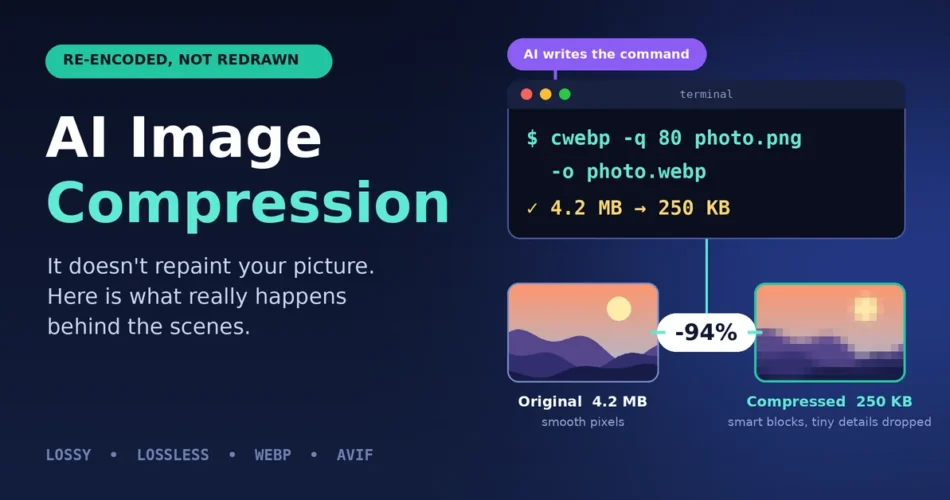
No, in most cases it does not. When you ask an AI tool like Codex CLI, Claude, or another coding agent to “compress this image,” the AI model does not repaint your picture. It writes and runs a command for a normal image tool such as ImageMagick, Pillow, cwebp, or pngquant. That tool does the real work.
The 80% or higher size drop is real. It comes from four simple things: a smarter file format, lower quality that your eyes barely notice, smaller dimensions, and removed hidden data. The AI is the operator. The compressor is the engine.
The only time AI truly “redraws” an image is when you use an image generation model and ask it to recreate the picture. That gives you a new image, not a smaller copy of the old one.
Key Takeaways
- AI chat tools and CLIs usually call classic compression software. They do not compress pixels with their own brain.
- An 80%+ size reduction is normal when you convert a PNG to WebP or AVIF and also resize it.
- Compression can be lossless (nothing lost) or lossy (tiny details thrown away on purpose).
- Image generation is a different job. It creates new pixels, so details can change.
- You can check what really happened in about two minutes. A method is shown later in this article.
Why This Confuses So Many People
Imagine you tell an assistant, “Make this photo smaller.” A minute later you have a file that is 85% lighter, and it still looks almost the same. It feels like magic, so it is natural to think the AI looked at your picture and drew it again.
That idea sounds logical because AI models can see images and can also generate images. But those are two separate abilities, and neither one is what shrinks your file. Let us break it down step by step.
Two Different Things: AI That Sees vs. AI That Does the Work
1. AI that understands your image
When you upload a picture to a chat tool, the model turns it into numbers. These numbers (often called tokens or embeddings) let the model describe what is in the image, such as “a red car on a road.” This is for understanding. The model cannot hand back a smaller file from those numbers.
2. AI that runs tools for you
Coding agents like Codex CLI or Claude Code live inside a terminal or a small computer sandbox. They can run commands. So the AI thinks, “The user wants a smaller file. I will use a compressor,” and it types a command like this:
cwebp -q 80 photo.png -o photo.webpThe language model only wrote the command. The program cwebp, which has existed for years, did the compression.
Simple analogy: Think of a taxi driver and a map app. The app (AI) decides the route and tells the driver what to do. The car (compression tool) actually moves you. The app never moves you by itself.
What Really Happens Behind the Scenes: Step by Step
Here is the real journey of your image when an AI agent compresses it.
- You give a request. For example: “Convert this PNG to WebP and make it under 200 KB.”
- The AI plans. It checks the file type, size, and dimensions, often with a small command.
- The AI picks a tool. Common choices are Pillow (Python), ImageMagick,
cwebp,avifenc,pngquant,mozjpeg, or the Sharp library in Node.js. - The tool runs. The compressor reads your pixels, processes them, and writes a new file.
- The AI checks the result. It reads the new file size and, if it is still too big, runs the tool again with lower quality or smaller dimensions.
- You get the output file.
Notice that your original pixels were never “imagined” by the AI. They were mathematically processed by a compressor.
How Image Compression Works Technically (Made Simple)
Compression tools use clever math, not guesswork. Here are the main ideas.
Lossless compression: shrink without losing anything
Lossless methods find patterns and store them in a shorter way. If a row of 500 pixels is all the same blue, the file does not store “blue” 500 times. It stores “blue × 500.” PNG works like this, using a method called DEFLATE plus smart filters that predict each pixel from its neighbors. When you open the file, you get back exactly the original pixels.
Lossy compression: remove what your eyes will not miss
Lossy methods throw away tiny details that humans barely notice. This is where the big savings come from. A typical lossy encoder (JPEG, WebP, AVIF) follows this recipe:
- Change the color system. RGB is converted to brightness plus color (called YCbCr). Our eyes are very sensitive to brightness but weaker with fine color detail.
- Reduce color detail (chroma subsampling). The color information is stored at lower resolution than brightness. Most people cannot tell the difference in normal photos.
- Split into small blocks. The image is cut into tiny squares, for example 8×8 pixels in JPEG.
- Transform each block. A math step (DCT in JPEG, similar transforms in WebP and AVIF) converts pixel values into “how much smooth change” and “how much fine detail” each block has.
- Quantize (the real loss). Fine details with small impact are rounded off or dropped. The “quality” slider you see, like 80, controls how aggressive this step is.
- Entropy coding. The leftover numbers are packed efficiently into the smallest possible bits, like writing short codes for common values.
Modern formats go further. WebP (based on the VP8 video codec) and AVIF (based on the AV1 video codec) first predict each block from neighboring blocks and store only the difference. Predicting is cheaper than storing, which is why they beat older formats.
Simple analogy: Imagine summarizing a long book for a friend. You keep the story and key scenes but skip the exact wording of every sentence. The friend understands the same story, but the page count is far smaller.
Why Do You See 80%+ Size Reduction?
No single trick gives 80%. It is usually several small wins stacked together.
| What changed | Why it saves space | Typical effect |
|---|---|---|
| Format switch (PNG or JPEG to WebP or AVIF) | Newer, smarter codecs | Often 25% to 50% smaller for photos, much more for screenshots and graphics |
| Lower quality (for example 100 to 80) | Drops detail your eyes rarely notice | Large drop with little visible change |
| Resizing (for example 4000 px to 1600 px) | Fewer pixels to store | Cutting width and height in half leaves only 25% of the pixels |
| Removing metadata (EXIF, color profiles, thumbnails) | Hidden data is deleted | A few KB to several hundred KB |
| Color reduction (palette tools like pngquant) | Uses 256 colors instead of millions | Often 60% to 80% smaller on flat graphics |
Real-world example: A 4 MB phone screenshot saved as PNG is converted to WebP at quality 80 and resized from 2400 px wide to 1400 px wide. The result is around 250 KB, which is about a 94% reduction. Nothing was redrawn. The file was just stored far more cleverly.
Results vary by image. Photos with lots of texture shrink less. Screenshots, logos, and flat illustrations shrink the most.
So When Does AI Actually Redraw an Image?
There are real cases where new pixels are created, and it helps to know them.
- Image generation models. If you upload a picture and say “recreate this in the same style,” the model produces a brand-new image. Text may change, faces may shift, and small objects may disappear.
- AI upscalers and enhancers. These add invented detail. They are made to make images bigger or sharper, not smaller.
- Neural (learned) image compression. This is a research and emerging-technology area where a neural network encodes an image into a tiny code and a decoder rebuilds it. It can beat traditional codecs in tests, but it needs special decoders, so it is not what normal CLI agents or WordPress websites use today.
If your task was just “compress” or “convert,” you almost certainly got classic compression.
How to Check What the AI Really Did
Do not just trust the result. Verify it in a few minutes.
- Read the command log. Coding agents show the commands they ran. Look for names like
magick,cwebp,pngquant,Pillow, orsharp. - Compare the files. Check size, dimensions, and format. If the dimensions dropped, resizing contributed to the savings.
- View both images at 100% zoom. Look at text edges, faces, and gradients. Artifacts (blocky areas or blurry edges) are signs of heavy lossy compression.
- Use a quality score if you want numbers. Metrics such as SSIM and PSNR compare the original and the compressed version. Higher is closer to the original.
- Check the metadata. If EXIF information vanished, the tool removed it.
A redrawn image would not line up pixel for pixel with your original. A compressed image will line up closely, with only small differences.
Quick Commands You Can Run Yourself
You do not need AI to do this. These are the same tools the agents use.
Convert to WebP with quality 80 (cwebp):
cwebp -q 80 input.png -o output.webpResize and compress with ImageMagick:
magick input.jpg -resize 1600x -quality 80 -strip output.webpPython with Pillow:
from PIL import Image
img = Image.open("input.png")
img.thumbnail((1600, 1600))
img.save("output.webp", quality=80, method=6)
Best Settings for WordPress Websites
Image weight affects page speed, and page speed affects user experience and search performance. Images are often the largest part of a page, and they strongly influence Largest Contentful Paint (LCP), one of Google’s Core Web Vitals.
- Format: Use WebP as a safe default. WordPress has supported WebP uploads since version 5.8 and AVIF uploads since version 6.5. Use AVIF where you want the smallest files.
- Width: Most blog images look sharp at 1200 to 1600 px wide. You rarely need 4000 px.
- Quality: Start at 75 to 85 for photos. Go higher only if you see artifacts.
- Featured image size: 1200 × 628 px works well for blog headers and social sharing previews.
- Alt text: Always write a short, honest description. It helps accessibility and search.
- Lazy loading: WordPress adds this by default for most images, so keep it enabled, except for the main image at the top of the page.
Common Mistakes to Avoid
- Compressing an already compressed JPEG again and again. Each lossy pass adds damage. Always compress from the original when you can.
- Using lossy compression on text-heavy screenshots at low quality. Letters become fuzzy. Use higher quality or keep PNG or lossless WebP.
- Upscaling small images. It does not add real detail and wastes bytes.
- Trusting a single AI answer. Ask what tool and settings were used, then verify.
Frequently Asked Questions
Does AI compress images by redrawing them?
No. Tools like Codex CLI and Claude run normal compression software such as ImageMagick, Pillow, or cwebp. Only image generation models create new pixels, and that is not compression.
Why did my image shrink by more than 80%?
Usually several changes stack together: a better format like WebP or AVIF, lower quality, smaller dimensions, and removed metadata. Together they can easily pass 80%, especially for PNG screenshots.
Is AI image compression lossy or lossless?
It depends on the settings chosen. Converting to a lossy format at quality 80 is lossy. Using lossless WebP or optimized PNG is lossless. Ask the AI to tell you which one it used.
Is it safe to compress images with an AI tool?
The compression itself is safe and standard. However, if you upload private images to a cloud chat tool, the image leaves your device, so check the privacy terms. A local CLI tool that runs commands on your own computer keeps the file on your machine, although the text of your request may still go to the AI provider.
Will compression hurt my SEO?
Properly done, it helps. Smaller images load faster, which supports better page experience. Just avoid over-compressing until the image looks poor.
What is the best format for website images in 2026?
WebP is the safest all-round choice. AVIF gives smaller files with strong browser support, and PNG is still useful when you need perfect lossless graphics.
Can AI compress an image without losing quality?
Yes, if lossless compression is used, but the savings are smaller. For big savings (80% or more), some invisible loss is normally accepted.
Final Thoughts
The truth is simpler than the magic it feels like. When an AI tool compresses your image, it is acting like a smart assistant that picks the right classic tool, runs it with good settings, and checks the result. Your picture is not redrawn. It is re-encoded with better math and sensible trade-offs.
So the next time a 3 MB image becomes 200 KB, you will know exactly what happened. And you can verify it, repeat it, and even do it yourself without any AI at all.
In one sentence: AI image compression is mostly a smart assistant running proven compression tools, not an artist redrawing your picture.
Comments