
There’s a moment every developer hits when they’re switching between their editor, terminal, and browser for the tenth time on the same bug — and they think: there has to be a better way to do this.
Google just answered that question.
In November 2025, Google released Antigravity — a new kind of development platform where AI agents don’t just suggest your next line of code. They take an entire task, plan it out, build it, run it, test it in a real browser, fix what breaks, and hand you back a verified result.
I’ve been using it for the past few weeks across real projects. This post is everything I know — what it is, how it actually works, where it genuinely helps, where it falls short, and what you need to watch out for before you start using it.
What Is Google Antigravity?
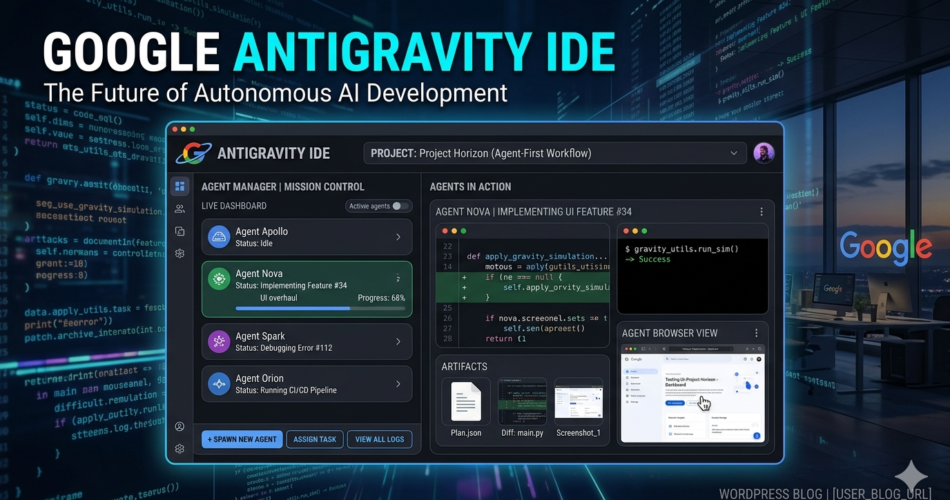
Antigravity is Google’s agent-first development platform, launched on November 20, 2025. At its core it’s a VS Code fork — so the editor looks and feels exactly like what you already know. But the reason it exists is something new: the Agent Manager, a dedicated space where autonomous AI agents handle multi-step development tasks from start to finish.
Every AI code tool before this has worked the same way. You write code, AI helps you write the next part. You’re always the one driving. Antigravity flips this. You describe what you want built. The agent does the building. You review what it made.
The AI running it is Gemini 3 Pro, Google’s latest model, achieving 76.2% on SWE-bench Verified — a benchmark that measures real-world GitHub issue resolution, not toy problems. This is important because it means the model has been tested against actual production codebases, not just coding puzzles.
The platform is available on Windows, macOS, and Linux. Download it at antigravity.google. During the current public preview period, it’s free to use with some rate limits.
The Problem It's Built to Solve
To understand why Antigravity matters, think about what building a single feature actually looks like day to day.
You write some code. You run it in the terminal. You check the output. You switch to the browser to test the UI. Something’s wrong. You switch back to the editor. You fix it. You run it again. You check the browser again. For a moderately complex feature — say, a login form with authentication — this loop can take an hour, and a significant portion of that time is just switching contexts, reading docs, and running commands you’ve run a hundred times before.
Tools like GitHub Copilot and Cursor made individual steps in this process faster. But the loop itself — the constant switching — stayed exactly the same.
Antigravity attacks the loop. Its agents can work across your editor, your terminal, and a real browser simultaneously, as a single coordinated workflow. You give the task once. The agent moves through the steps on its own.
How It Actually Works — The Two Surfaces
Antigravity has two distinct areas, and understanding both is the key to using it well.
The Editor is the familiar part. It looks like VS Code, your extensions work in it, tab completions work in it, you can use it exactly like your current editor. Nothing to relearn here.
The Agent Manager is why you’re here. This is where you assign tasks to AI agents and where the agents report back. Think of it as a project management view for your AI workers — you can see what each agent is working on, review the plans they created, check progress, and leave feedback the way you’d comment on a Google Doc.
Switch between the two with Cmd+E on Mac or Ctrl+E on Windows. That single shortcut is how you move between “I’m writing code” and “I’m directing agents.”
What Happens When You Give the Agent a Task
Here’s a real example. I gave Antigravity this task:
"Build a login form with JWT authentication, input validation, and error states. Test it in the browser."
In Plan Mode — which I’ll explain in a moment — the agent first produced an implementation plan. Not code yet. A document outlining what it intended to build, which files it would create, what the JWT flow would look like, and what it planned to verify in the browser. I read through it, added one comment about error message copy, and approved it.
Then the agent executed:
- Created the React component and form structure
- Built the authentication endpoint
- Started the development server from the terminal
- Opened Chrome, navigated to the login page, filled in the form with test credentials
- Took a screenshot confirming the success state
- Tested an invalid login to confirm error handling
- Returned a complete artifact — plan, code diffs, terminal logs, and browser screenshots
I didn’t write a line of code. The whole thing took under five minutes. The same task — including the context switching, JWT implementation research, and browser testing — takes me closer to forty-five minutes when I do it manually.
Plan Mode vs Fast Mode — Use the Right One
Every task you give an agent runs in one of two modes.
Plan Mode is the one you should default to. The agent creates a detailed implementation plan before touching any code. You review it, catch misunderstandings early, adjust direction with comments, and approve it. Only then does the agent start executing. For anything touching more than one file, this prevents a lot of frustrating reverts later.
Fast Mode skips the plan and executes immediately. Faster for simple, isolated tasks. Risky for anything with complexity or dependencies across multiple files.
The rule of thumb: use Plan Mode for features, refactors, and anything multi-step. Use Fast Mode only for truly simple, low-risk, single-file tasks where you’re confident about the scope.
Running Multiple Agents in Parallel
This is where Antigravity goes beyond anything else available right now. You can run multiple agents simultaneously, each working on a different task across the same project.
In practice, this looks like: one agent writing your backend API endpoint while another builds the frontend component that calls it, while a third writes the test suite. All running at the same time. The Agent Manager shows you the status of each, and you review them as they complete.
No other IDE has this capability today. For complex features that would normally take hours of sequential work, parallel agents compress that timeline significantly.
The Things That Are Genuinely Rough
This is a preview-stage product and it behaves like one. Here’s what you’ll actually run into.
Stability. Agent mode fails mid-task without explanation more often than you’d want. Community forums have ongoing threads about this. It’s not a rare edge case. Treat it as an expected occasional occurrence, not a deal-breaker, and save your work before running long tasks.
The context window. Gemini 3 Pro has limits on how much code it can hold in memory at once. For large codebases, the agent sometimes produces work that’s inconsistent with code in files it hasn’t loaded. Review everything. On a refactor I ran across a mid-sized codebase, I caught two inconsistencies that would have caused bugs in production.
Rate limits. The free tier has been cut repeatedly since launch. At launch it was 250 requests per day. By December 2025 it was down to 20. Google has since moved to a credit system. The free tier is enough to genuinely evaluate the tool, but it’s not enough for daily production use. Budget for a paid plan if you want to rely on it.
No enterprise sign-in yet. You sign in with a personal Gmail account. Google Workspace and company SSO are not supported as of this writing. This has significant implications for commercial use — covered in the next section.
Data Privacy — Read This Before Using It on Client Work
By default, when you use Antigravity with a personal Gmail account, your code and prompts are used to train Google’s AI models.
This is separate from the cloud processing required to run AI features — that happens regardless of your settings. This is an additional use of your data beyond what’s needed for the tool to function.
You can opt out. Go to Settings → Privacy and disable both the telemetry toggle and the “allow interactions to be used for model training” toggle. Worth noting: in February 2026, users reported this setting was temporarily missing from the UI for a period. If you can’t find it, contact antigravity-support@google.com.
The practical guidance is straightforward. For personal projects, open source, and learning — using Antigravity is reasonable. For client code under NDA, proprietary commercial products, or anything in a regulated industry — I would not use it until Google Workspace sign-in is available. Workspace accounts would provide proper data isolation. Until then, there’s too much ambiguity around how commercial code is handled.
Where Antigravity Is the Right Tool
Large refactors. This is the strongest use case right now. Converting async patterns across a codebase, updating deprecated APIs, standardizing naming conventions across dozens of files — work that’s systematic, time-consuming, and doesn’t require novel thinking. The agent handles this methodically while the artifact log gives you a clear record of every change.
DevOps and infrastructure work. Multi-stage Dockerfiles, GitHub Actions pipelines, Terraform module scaffolding, shell scripts with proper error handling — Antigravity handles all of these well. It understands AWS service interactions reasonably, though you should always verify IAM permissions and resource configurations manually. The agent’s ability to run terminal commands and verify results is particularly useful here.
Boilerplate-heavy project setup. New project with a specific stack? Antigravity can scaffold a complete setup — framework, configuration files, folder structure, linting rules, testing setup — in a few minutes and verify the dev server runs. What would take 30 minutes of following documentation takes 3 minutes here.
Learning from real code. If you’re developing your skills in JavaScript, TypeScript, or any mainstream language, Antigravity produces genuinely good code and explains why it made each decision in the implementation plan. This is more valuable than most tutorials because it’s contextualized to the actual problem you’re trying to solve.
Where Antigravity Is Not the Right Tool
Quick single-line edits and inline fixes. Cursor or GitHub Copilot will serve you better for fast, hands-on coding work where you want to stay in control of every line. Antigravity’s overhead isn’t worth it for small changes.
Offline work. All AI features require an active internet connection. The AI processes on Google’s servers. There’s no local model option.
Regulated industry codebases. Healthcare, finance, legal — anywhere with compliance requirements around data handling. Not until Workspace integration provides proper data controls.
Production-critical features without heavy review. The agent is good but not perfect. Any code going to production needs your eyes on it, especially for security-sensitive paths, edge cases, and business logic that the agent has no context for.
Pricing — What Costs What
Antigravity is in public preview with a free tier and paid tiers built around Google’s AI Pro and AI Ultra subscriptions.
The free tier gives you access to all the core features including Gemini 3 Pro. The limitation is the rate limits — which, as noted above, have been cut multiple times since launch. It’s currently sufficient to evaluate the tool and run a meaningful number of tasks per day, but not for intensive daily use.
AI Pro is approximately $20/month and provides significantly higher rate limits. For a developer using Antigravity as a regular part of their workflow, this is the realistic minimum.
AI Ultra at approximately $250/month is Google’s highest tier, providing the highest available limits. Based on current forum reports, even Ultra users occasionally hit limits during intensive work sessions — something to be aware of if you’re considering this tier.
A dedicated Team plan with role-based access controls and SAML SSO is referenced in documentation but not yet publicly available. Enterprise pricing is custom.
Installation in Four Steps
Step 1. Download from antigravity.google for your operating system — Windows installer, macOS disk image, or Linux AppImage/DEB package.
Step 2. Launch and complete the setup wizard. It will ask whether to import your existing VS Code settings (themes, keybindings, extensions — all transfer cleanly since Antigravity is a VS Code fork), choose a theme, and configure agent autonomy mode. Select Review-driven here.
Step 3. Sign in with your Google account. This is required for AI features.
Step 4. Open your project folder. Then before running your first agent task, create a project rules file at .antigravity/rules.md in your project root. This is where you tell the agent your tech stack, coding conventions, testing requirements, and any constraints to follow. Agents read this file on every task. A good rules file means you stop repeating yourself and the agent produces code that fits your project from the first run.
The Keyboard Shortcuts Worth Knowing First
| Shortcut (Mac) | Shortcut (Win/Linux) | What It Does |
|---|---|---|
Cmd + E | Ctrl + E | Toggle between Agent Manager and Editor |
Cmd + L | Ctrl + L | Open/close the AI chat panel |
Cmd + K | Ctrl + K | Inline AI command on selected code |
Cmd + Shift + P | Ctrl + Shift + P | Command palette |
Tab | Tab | Accept AI tab completion |
Esc | Esc | Reject completion or stop agent mid-task |
The Bigger Picture
The development tools that came before Antigravity — autocomplete, inline suggestions, chat assistants — made individual coding tasks faster. They improved the speed of execution without changing what execution looked like.
Antigravity changes what execution looks like.
The skill that matters most when using it isn’t typing speed or memorizing syntax. It’s being able to describe what you want precisely, evaluate what the agent produces critically, and catch the mistakes a fast but imperfect AI worker will inevitably make.
That’s a different skill from what most developers have spent years building. And whether you find that unsettling or exciting probably depends on where you are in your career and how you think about the work you do.
Either way, this is worth understanding. The agent-first development model Antigravity is introducing is where the industry is going. Getting familiar with it now — during a free preview, when you can experiment without consequence — is a reasonable thing to do.
Categorized in:
Comments